
Your website isn't showing up on Google? It's likely because your pages haven't been indexed. Without indexing, search engines can't display your site in results - no traffic, no leads, no sales. Fixing this starts with understanding why it happens and taking the right steps to resolve it.
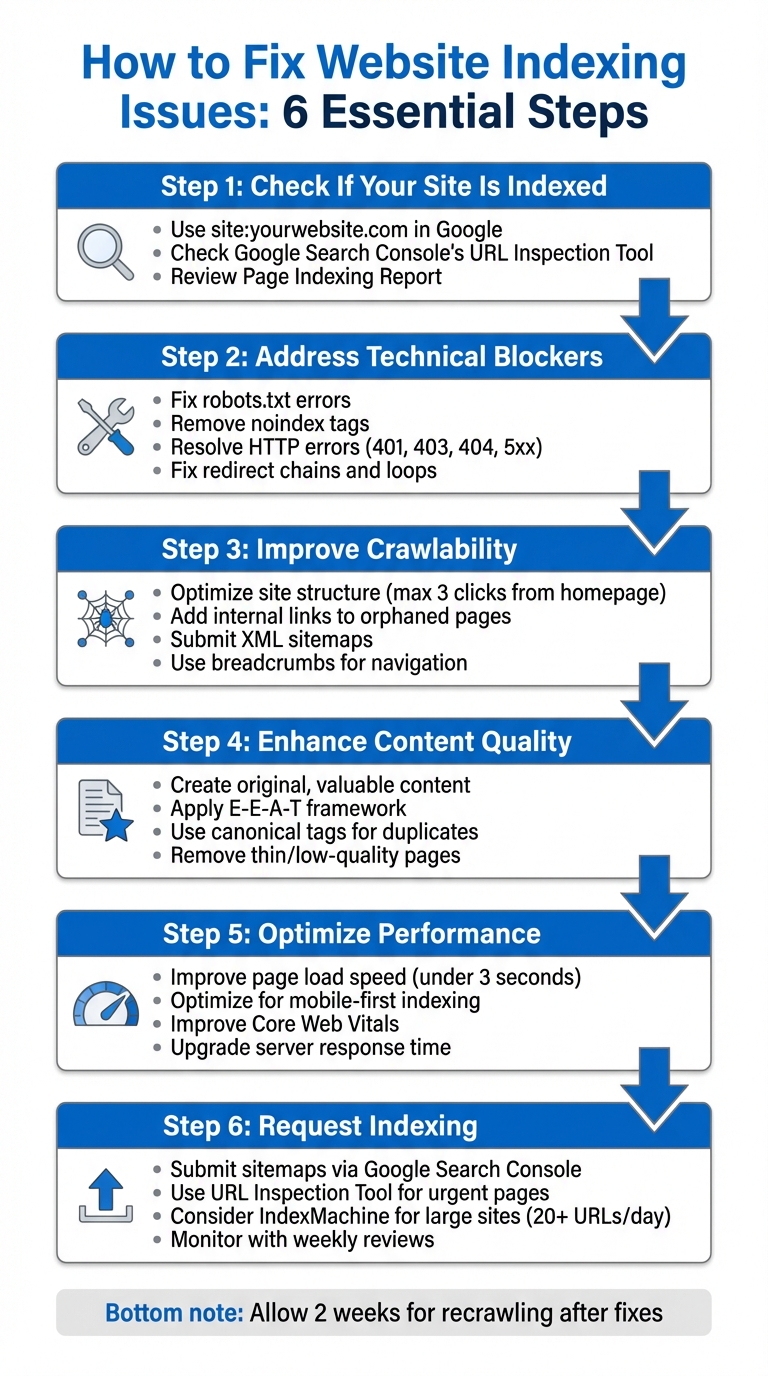
Key Steps to Fix Indexing Issues:
- Check if your site is indexed: Use
site:yourwebsite.comin Google or Google Search Console's URL Inspection Tool. - Address technical blockers: Fix robots.txt errors, noindex tags, HTTP errors, and redirect issues.
- Improve crawlability: Ensure your site's structure, internal links, and sitemaps guide search engines to important pages.
- Enhance content quality: Focus on original, well-organized content that provides value to users.
- Optimize performance: Speed up page loads and ensure your site works well on mobile.
- Request indexing: Submit sitemaps and URLs via Google Search Console or tools like IndexMachine for large sites.
If your pages aren't indexed, they're invisible online. Follow these steps to diagnose and fix the issue, ensuring search engines can find and rank your content effectively.
Why Isn't Google Indexing Your Site? Here's How to Fix It
How to Check If Your Website Is Indexed
Before diving into troubleshooting, it's crucial to confirm whether your pages are indexed. There are a few ways to do this, each offering varying levels of detail.
Using Search Operators to Check Indexing
One of the quickest ways to check indexing is by using Google's search bar. Simply type site:yourwebsite.com into the search bar. This will give you an estimate of the pages Google has indexed for your site. If no results appear, it means none of your pages are currently indexed.
Here's a quick guide to useful search operator syntax:
| Search Operator Syntax | Search Engine | Purpose |
|---|---|---|
| site:example.com | Shows an estimate of all indexed pages for the domain. | |
| site:example.com/path/ | Checks indexing for a specific directory or subfolder. | |
| site:example.com/page-url | Confirms if a specific URL is indexed. | |
| url:example.com/page-url | Bing | Checks if a specific URL is indexed in Bing. |
These search operators are handy for quick checks, whether you're looking at the entire site, specific sections, or individual pages. For more detailed insights, Google Search Console is your go-to tool.
Checking URLs in Google Search Console
Google Search Console's URL Inspection Tool offers deeper insights. Just paste the URL you want to check into the tool, and it will show one of three statuses:
- "URL is on Google": The page is indexed.
- "URL is on Google, but has issues": The page is indexed but might need adjustments.
- "URL is not on Google": The page isn't indexed.
The tool also provides details like the last crawl date, whether crawling was blocked by robots.txt, and if a noindex tag is preventing indexing. For a broader view, the Page Indexing Report in Search Console categorizes URLs into "Indexed" and "Not indexed" groups, along with reasons for exclusion. If a page isn't indexed but should be, you can click "Request Indexing" to queue it for crawling.
Using IndexMachine for Page-Level Insights
For larger websites, where Google Search Console's Page Indexing reports are limited to roughly 1,000 URLs per category, IndexMachine steps in to provide more granular tracking. This tool monitors individual page indexing, logs crawl history, and categorizes pages as indexed, excluded, or pending.
IndexMachine is especially helpful for spotting gaps in indexing. For example, it can identify pages that are accessible but not being indexed due to technical issues or content quality concerns, such as the "Crawled – currently not indexed" status. The platform also automates submission processes, making it easier to resolve issues across websites with thousands of pages. This detailed visibility helps you address problems at scale and ensures nothing slips through the cracks.
Fixing Technical Problems That Block Indexing
To get your site content properly indexed, tackling technical barriers is a must. This section dives into common issues that keep search engines from accessing your content and how to fix them.
Fixing Robots.txt and Meta Tag Blocks
The robots.txt file, located at the root of your site (e.g., example.com/robots.txt), tells search engine crawlers which parts of your site they can or cannot access. A single line, like User-agent: * Disallow: /, can block your entire site from being crawled - one of the most frequent causes of large-scale indexing problems.
To check for issues, open yourdomain.com/robots.txt in your browser to view your current crawl rules. Then, use the Page Indexing report in Google Search Console to look for the "URL blocked by robots.txt" status. The URL Inspection tool can also help by showing a "Crawl allowed?" field - if it says "No", you've identified the problem.
Google's Robots.txt Tester tool is invaluable for pinpointing which lines in your robots.txt file are causing blocks. Once you find the offending directives, adjust them. For example, if Disallow: /blog/ is blocking your blog, you can change it to Allow: /blog/ or remove the line entirely to allow crawling.
It's also important to remember that a blocked page prevents Google from reading noindex tags, which can lead to unwanted "blocked" listings in search results. Additionally, ensure your XML sitemap doesn't include URLs blocked in robots.txt, as this contradiction can cause errors in Search Console.
| Robots.txt Directive | Meaning | Impact on Indexing |
|---|---|---|
| User-agent: * Disallow: / | Blocks all crawlers from the entire site. | Prevents all pages from being crawled or indexed. |
| User-agent: Googlebot Disallow: /private/ | Blocks Googlebot from the /private/ folder. | Stops indexing of content in that directory. |
| Disallow: /temp/*.html | Blocks all HTML files in the /temp/ folder. | Prevents indexing of specific file types in a directory. |
| Allow: / | Allows all crawlers full access to the site. | Ensures complete crawlability. |
After fixing your crawl directives, double-check that HTTP errors or redirect issues aren't contributing to indexing problems.
Resolving HTTP Errors and Redirect Issues
HTTP errors can also create roadblocks for indexing. For example, a 404 Not Found error occurs when the server can't locate a page - often because content was deleted or moved without a redirect. If the page has been relocated, set up a 301 redirect to its new URL. If it's permanently gone with no replacement, use a 410 (Gone) status code to let Google know it's no longer available. Be wary of soft 404s, where a "not found" message is shown to users, but the server incorrectly returns a 200 OK status code. This wastes crawl budget, so configure your server to return a proper 404 or 410 response.
Other common errors include:
- 401 (Unauthorized) and 403 (Forbidden): These occur when access controls block crawlers. Adjust your
.htaccessfile or server settings to allow Googlebot access. - 5xx server errors: These indicate server overloads, misconfigurations, or timeouts. Use the Crawl Stats report in Google Search Console to check for capacity issues, then optimize your server load or contact your hosting provider.
Redirect chains and loops can also disrupt indexing. Use a redirect checker to trace a URL's path and simplify it if needed. After making changes, validate your fixes in Google Search Console and allow about two weeks for recrawling.
| Error Code | Meaning | Solution |
|---|---|---|
| 401 | Unauthorized | Remove password protection or provide credentials for Googlebot. |
| 403 | Forbidden | Adjust server permissions, firewalls, or .htaccess settings. |
| 404 | Not Found | Redirect to a relevant page or use a 410 code for permanent removal. |
| Soft 404 | False OK | Configure the server to return a proper 404/410 code. |
| 5xx | Server Error | Check server logs, optimize performance, or contact your host. |
| Redirect Error | Loop/Chain | Streamline redirect paths to ensure they resolve to a valid URL. |
Once these issues are resolved, ensure that all resources critical to your site's functionality are accessible to search engines.
Making Resources Accessible to Search Engines
For Googlebot to fully understand and rank your pages, it needs access to the same resources as a user's browser - this includes CSS, JavaScript, and images. If these elements are blocked, your site may not appear in search results or rank for your target keywords.
"If your site is hiding important components that make up your website (like CSS and JavaScript), Google might not be able to understand your pages." - Google Search Central
Use the URL Inspection Tool in Google Search Console to "Test Live URL" and "View Crawled Page." This lets you see how Googlebot renders your site and highlights any missing components. Check your robots.txt file to ensure it isn't blocking critical directories for CSS or JavaScript.
If your site relies heavily on JavaScript or Flash for navigation, provide alternative HTML links to make sure all pages are discoverable. Also, avoid loading key content too late via JavaScript - if Googlebot can't process the script quickly, it may see an incomplete or blank page. For images, include high-quality visuals near relevant text and use descriptive alt text to help search engines connect the image to your content's context.
Improving Content and Site Structure
Once you've tackled technical hurdles, the next focus should be ensuring your content and site structure are worthy of indexing. Search engines favor pages that are both valuable to users and easy to navigate - for people and crawlers alike.
Creating Quality, Original Content
Google only indexes pages that bring something new to the table. Thin or generic content? It typically gets ignored. To stand out, every page needs to offer distinct value. This means crafting content from your own expertise instead of recycling existing material.
A great way to ensure your content stands out is by applying the E-E-A-T framework - Experience, Expertise, Authoritativeness, and Trustworthiness. This framework helps you create content that's not only insightful but also well-organized with clear headings and error-free writing.
To avoid duplicate content, use canonical tags and regularly audit your site to update or remove outdated pages.
"If you have a smaller site and you're seeing a significant part of your pages are not being indexed, then I would take a step back and try to reconsider the overall quality of the website and not focus so much on technical issues for those pages." - John Mueller, Search Advocate, Google
After ensuring your content meets these standards, enhance your site's architecture with robust internal linking to make it easier for crawlers to access important pages.
Improving Internal Links and Navigation
Think of internal links as a roadmap for search engines - they help bots understand how your pages relate to one another. A flat site structure, where key pages are no more than three clicks away from the homepage, improves crawl efficiency. Pages without any internal links, often called "orphaned pages", are frequently left out of search engine indexes.
When adding links, avoid vague anchor text like "click here." Instead, use descriptive phrases that provide context. Contextual links - those embedded naturally within your content - carry more SEO weight than links in headers or footers. Linking to new content from existing high-authority pages can also speed up indexing.
Breadcrumbs are another helpful tool, offering a clear hierarchy for both users and crawlers. They make it easier to navigate back to category or home pages. Additionally, grouping related pages into directories or topic clusters - where a central "pillar" page links to supporting subpages - signals depth and authority to search engines.
"It's one of the biggest things that you can do on a website to kind of guide Google and guide visitors to the pages that you think are important." - John Mueller, Search Advocate, Google
Managing Crawl Budget on Large Sites
For sites with thousands of URLs, managing your crawl budget becomes critical. This refers to the number of pages search engine bots will crawl within a given timeframe. If bots waste time on low-value pages, your important or new content might be skipped or delayed in indexing.
Here's how to make the most of your crawl budget:
- Use your robots.txt file to block bots from crawling unnecessary sections like admin pages, duplicate content, or resource files.
- Keep your XML sitemaps clean by including only canonical URLs and excluding duplicates, low-value, or "noindex" pages.
- If your site uses URL parameters (e.g., filters or session IDs), configure Google Search Console to manage these, preventing bots from crawling endless variations of the same page.
Additionally, prune low-quality content. Remove or "noindex" thin, duplicate, or unhelpful pages to direct bots toward your most valuable content. Optimizing server response times and page load speeds also allows bots to crawl more pages within their allocated time.
For large websites, these crawl budget strategies are essential for ensuring search engines focus on what truly matters.
How to Speed Up Indexing
Once you've addressed technical issues and improved your content, these strategies can help accelerate the indexing process.
Submitting Sitemaps and URLs
One of the quickest ways to get your pages indexed is by submitting your XML sitemap through Google Search Console. Just enter your sitemap URL and hit submit. Each sitemap can include up to 50,000 URLs and must stay under 50MB in size. If your website exceeds these limits, divide your URLs across multiple sitemaps and organize them with a sitemap index file.
For pages that need urgent attention, use the URL Inspection Tool in Google Search Console to request indexing. You can also add your sitemap URL to your robots.txt file, which ensures that all search engines - not just Google - can find it automatically.
"If you have large numbers of URLs, submit a sitemap. A sitemap is an important way for Google to discover URLs on your site." - Google Search Central
Before submitting, make sure your sitemap is accessible and uses absolute URLs (e.g., https://example.com/page) instead of relative paths. Check the Sitemaps report regularly in Google Search Console. A "Success" status means your sitemap has been processed, while "Has errors" flags issues that need fixing.
After submitting your sitemap, focus on enhancing your site's performance to further optimize crawling.
Improving Page Speed and Mobile Performance
Page speed plays a huge role in how often Google crawls your site. If your pages take longer than 3 seconds to load, it can reduce crawl frequency and slow down indexing. Faster websites allow Google to crawl more pages within the same crawl budget.
With Google's mobile-first indexing, your mobile site needs to be fast and properly formatted. Poor mobile optimization can result in "URL is not available to Google" errors, which can block indexing entirely. To address this, work on improving Core Web Vitals, which measure key aspects like loading speed and user interaction.
Server response time is another critical factor. If your server is slow, Google may temporarily pause crawling your site due to "hostload" issues. To avoid this, invest in a reliable hosting provider and consider using a content delivery network (CDN) to ensure fast response times across various regions.
Once your site is optimized for speed and performance, automation tools can make indexing even more efficient.
Automating Indexing with IndexMachine
For websites with a large number of pages, manually submitting URLs can be a time-consuming process, especially with Google Search Console's submission quotas. This is where IndexMachine comes in. It automates URL submissions to multiple search engines, including Google, Bing, and even AI platforms like ChatGPT, saving you time and effort.
IndexMachine offers daily reports that track your indexing progress and alert you to potential issues, such as 404 errors or "Crawled – currently not indexed" statuses, before they affect your traffic. The platform can handle up to 20 URL submissions per day for Google and up to 200 for other search engines, all on autopilot. You can even customize multi-engine support for each domain, making it an efficient solution for managing thousands of pages without juggling multiple dashboards.
Conclusion
Improving your website's indexation requires a mix of technical adjustments and ongoing efforts to enhance content quality.
Start by checking which pages are indexed using tools like site:yourdomain.com or the Page Indexing report in Google Search Console. Address issues such as noindex tags, robots.txt misconfigurations, HTTP errors, and redirect chains. Make sure to submit updated XML sitemaps to help search engines navigate your site effectively.
It's important to understand that not all pages will be indexed. As John Mueller points out, roughly 20% of a website's pages may remain unindexed. To stay on top of this, schedule weekly reviews and use the "Validate Fix" button in Search Console to request re-crawling after resolving any problems.
Focus on quality rather than quantity. Invest in strong, relevant content, optimize internal linking, and ensure your site performs well on mobile devices. These steps will help improve crawl efficiency and prevent search engines from wasting resources on low-value pages.
For larger websites with hundreds or thousands of pages, automation tools like IndexMachine can be a game-changer. These tools can streamline daily submissions and quickly identify issues like 404 errors, freeing you up to focus on creating high-quality content.
FAQs
How do I check if Google has indexed my website?
To find out if Google has indexed your website, simply type site:yourdomain.com into the Google search bar. This will display a list of pages from your site that are currently indexed. For a deeper dive, head over to the URL Inspection tool in Google Search Console. This tool offers detailed insights about the indexing status of individual pages and even allows you to request indexing when necessary. It's an excellent resource for identifying and resolving any indexing problems.
What are the most common technical reasons a website isn't being indexed?
There are a few technical hiccups that can stop search engines from indexing your site properly:
- Blocked by robots.txt or meta tags: If your
robots.txtfile is misconfigured or your pages contain a<meta name="robots" content="noindex">tag, search engines might be blocked from crawling or indexing your site. - Crawl errors or server issues: Errors like 4xx/5xx status codes, DNS failures, or server timeouts can prevent search engines from accessing your content.
- Sitemap problems: An XML sitemap that's missing, outdated, or incorrectly formatted can make it harder for search engines to locate your pages.
- Slow page speed: Pages that take longer than three seconds to load may be crawled less frequently, reducing their visibility in search results.
- Mobile-unfriendly design: With mobile-first indexing in play, sites that aren't optimized for mobile devices can be ranked lower or even ignored.
Addressing these issues - like fixing your sitemap, resolving crawl errors, improving page speed, and ensuring your site is mobile-friendly - can greatly boost your chances of getting indexed by search engines.
How can I make my website easier for search engines to crawl and improve its content quality?
To boost your site's crawlability, start by submitting an updated XML sitemap through Google Search Console. Double-check that your robots.txt file isn't blocking any crucial pages. Make navigation seamless by ensuring all pages are reachable within a few clicks from the homepage. This means refining your internal linking and keeping the site structure straightforward. Address broken links, eliminate redirect chains, and aim for page load times of less than 3 seconds - search engines appreciate fast and efficient sites. If you've made major updates, use Google's URL Inspection tool to request a fresh crawl.
When it comes to content quality, prioritize creating detailed, original pages that meet user needs. Avoid thin or duplicate content, and incorporate relevant keywords naturally into your writing. Craft compelling title tags and meta descriptions, and add structured data to make it easier for search engines to interpret your content. Make sure your site works well on mobile devices, limit intrusive ads, and keep older content updated to stay relevant. These efforts will improve your site's visibility and help establish trust with U.S. users.