

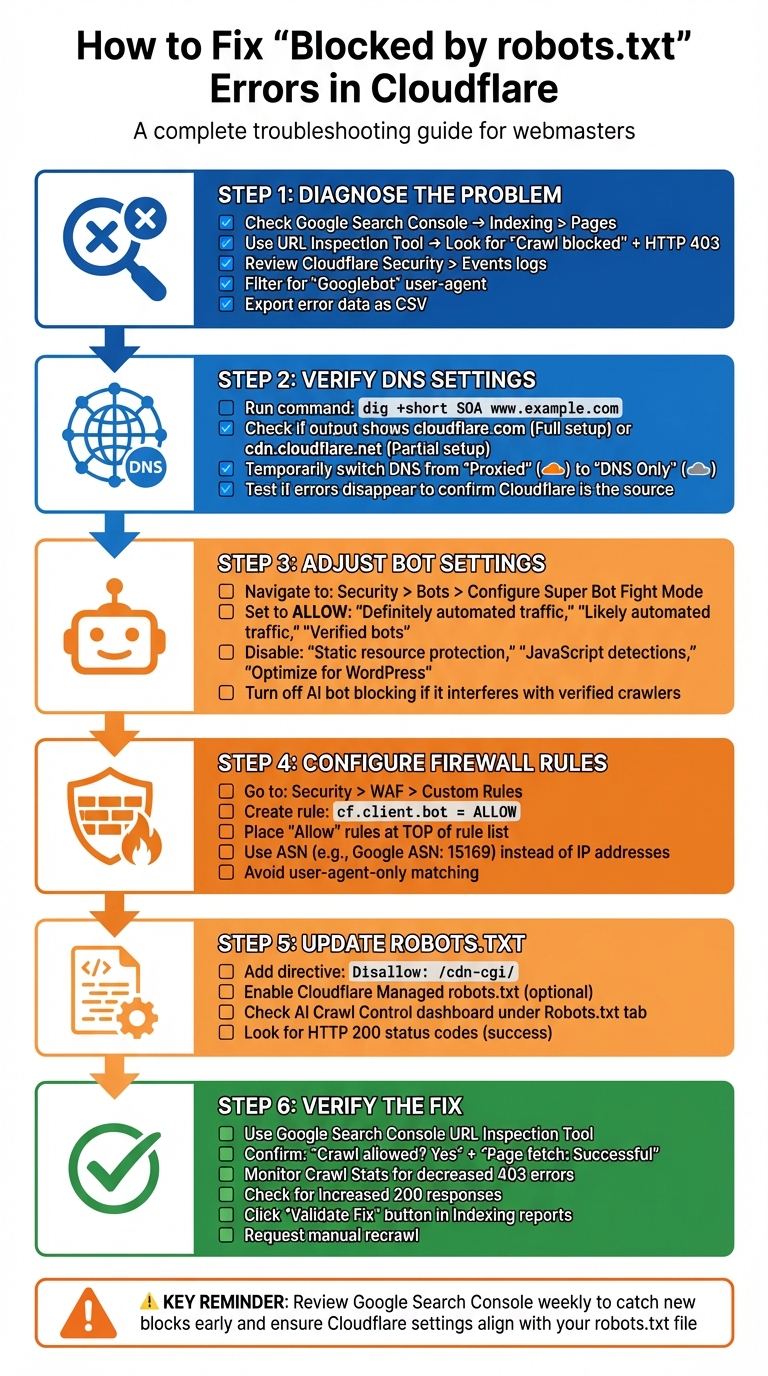
Getting a "Blocked by robots.txt" error in Google Search Console but didn't configure it yourself? This issue often stems from Cloudflare's default settings, which can unintentionally block Googlebot. When this happens, your pages, CSS, or JavaScript files may not appear in search results, harming your site's visibility.
Here's the quick fix:
- Check for crawl errors in Google Search Console, especially under "Indexing > Pages."
- Review Cloudflare settings like Bot Fight Mode, Super Bot Fight Mode, and WAF rules. These can block legitimate bots.
- Verify robots.txt behavior using Cloudflare's logs and Google Search Console's URL Inspection tool.
- Adjust Cloudflare settings to allow verified bots like Googlebot and Bingbot by modifying firewall and bot rules.
- Update your robots.txt file to prevent errors caused by Cloudflare's internal paths (e.g., disallow
/cdn-cgi/).
You'll also want to confirm fixes by testing live URLs in Google Search Console and monitoring crawl stats for improvements. This ensures search engines can access your site without unnecessary blocks. Let's dive into the details to resolve this issue and keep your content visible.
Finding the Source of 'Blocked by robots.txt' Errors
Check Crawl Errors in Google Search Console
Start by logging into Google Search Console and navigating to Indexing > Pages. This is where you'll find details on URL errors flagged as "Blocked by robots.txt" or other crawl anomalies. Look for patterns in these errors to determine what might be causing the issue.
Use the URL Inspection Tool for a closer look. Enter one of the problematic URLs and click "Test Live URL." If the tool reports "Crawl blocked" with an HTTP 403 response, it's likely that Cloudflare's Web Application Firewall is preventing Googlebot from even reaching your robots.txt file.
Pay close attention to the types of errors in your crawl reports. If you notice "Access Denied" (403/5xx) or "Redirected" status codes alongside the robots.txt warnings, these are likely caused by firewall rules rather than robots.txt itself. According to Don Jiang from Guangsuan Technology, "it could be due to firewall blocks".
Check the robots.txt Report in Google Search Console. If the status reads "Not Fetched" (but not a 404 error), it might indicate that Cloudflare is blocking access to your robots.txt instructions. To confirm, compare the timestamps of these crawl errors with Cloudflare's Security > Events logs. Look for entries where the User-Agent is "Googlebot" and check if Cloudflare issued a "Block", "Challenge," or "JS Challenge".
Export the crawl error data from GSC as a .csv file. This will be helpful if you need to involve Cloudflare support to investigate specific IP blocks or rule triggers.
Next, review your Cloudflare DNS proxy settings to determine whether the issue is tied to their security layers.
Verify DNS Proxy Settings with Cloudflare
After analyzing crawl errors, it's essential to check your DNS proxy settings in Cloudflare. This step helps identify whether the issue stems from Cloudflare or your origin server.
Run the following command in a terminal: dig +short SOA www.example.com (replace "www.example.com" with your domain). If the output includes cloudflare.com, you're using a Full setup. If it shows cdn.cloudflare.net, you're on a Partial (CNAME) setup.
To diagnose further, temporarily switch your DNS records from "Proxied" (orange cloud) to "DNS Only" (gray cloud). If the crawl errors disappear after this change, it confirms that Cloudflare's security settings are blocking the crawlers.
You can bypass Cloudflare entirely to test your origin server by running:
curl --header "Host: www.example.com" http://[Origin-IP]/robots.txt.
If your origin server responds with HTTP 200 OK and serves the correct robots.txt file, but Google Search Console still shows blocks, then Cloudflare is the source of the problem.
In Cloudflare's Security > Events, filter for entries related to "Googlebot" or "/robots.txt". As Cloudflare Community MVP cbrandt suggests: "Check your Firewall Events on Cloudflare's dashboard... and use the filter to find out if there are events related to path /robots.txt. Take note of what service is blocking or challenging Google's crawlers". These logs will reveal specific Rule IDs and services - such as WAF or Bot Fight Mode - that are interfering with Googlebot.
Lastly, review Cloudflare's AI Crawl Control under the Robots.txt tab. The "Availability" table here shows the success and failure rates of requests, along with HTTP status codes. A high number of "Unsuccessful" requests (status codes 400 or above) indicates that Cloudflare's security settings are actively blocking access to your robots.txt file.
Fixing Cloudflare Settings to Remove Robots.txt Blocks
Turn Off Anti-Bot Features and Super Bot Fight Mode
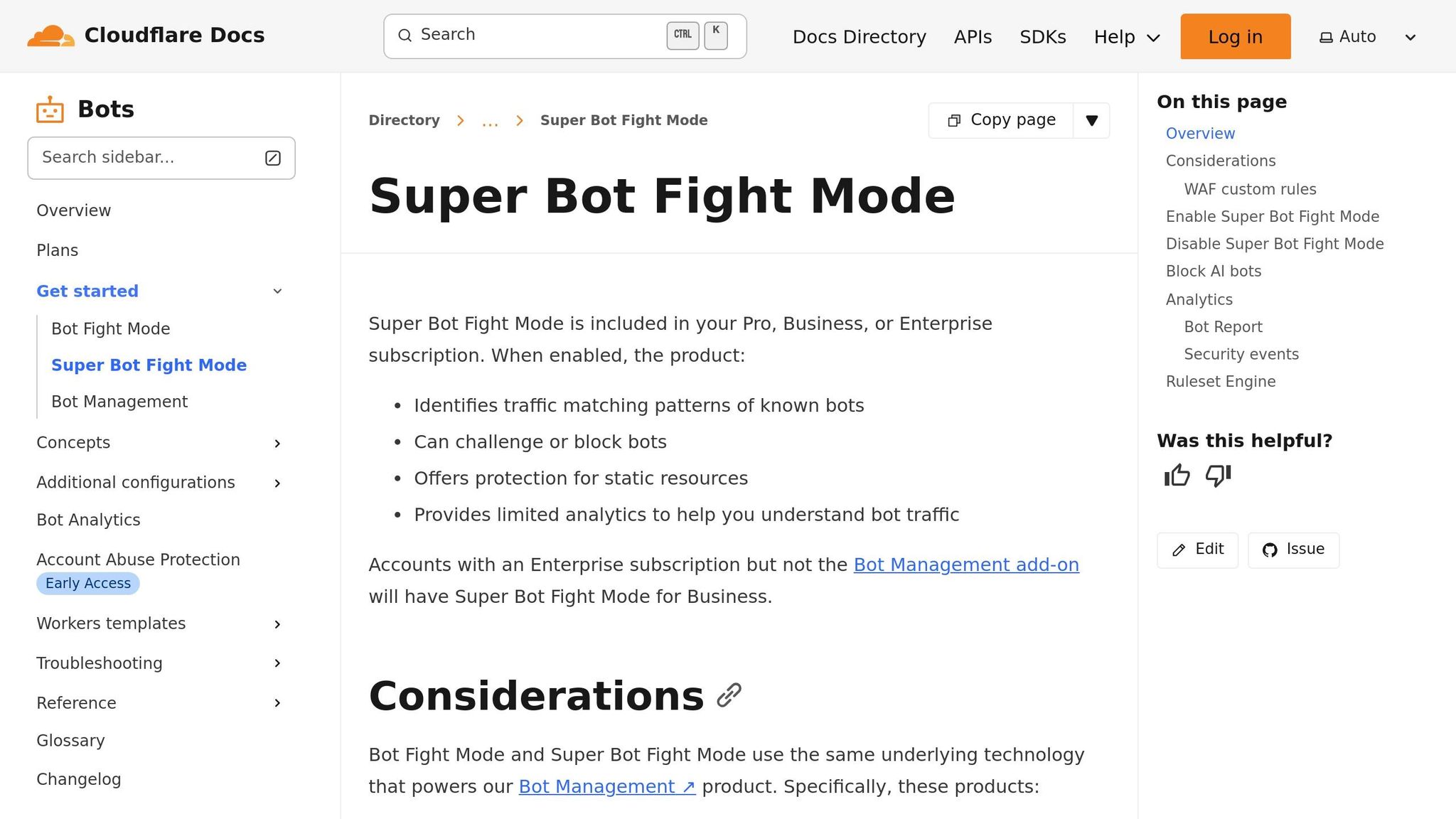
To address the blocks identified earlier, you'll need to tweak your Cloudflare settings. Head over to Security > Bots > Configure Super Bot Fight Mode in your Cloudflare dashboard. For the settings "Definitely automated traffic," "Likely automated traffic," and "Verified bots," set them to Allow. Additionally, disable the following features: "Static resource protection," "JavaScript detections," and "Optimize for WordPress."
If you're on a Pro, Business, or Enterprise plan, you'll have more control over bot management through Super Bot Fight Mode. However, users on the Free plan are limited to Bot Fight Mode, which is stricter and less customizable. It's important to note that Bot Fight Mode doesn't allow exceptions via WAF "Skip" actions or Page Rules. The only way to allow specific traffic is by creating IP Access rules that match the IP address of the connecting bot.
Another setting to watch out for is AI bot blocking. According to Cloudflare's documentation: "The rule to block AI bots takes precedence over all other Super Bot Fight Mode rules. For example, if you have enabled Block AI bots and Allow verified bots, verified AI bots will also be blocked". If this feature interferes with verified search crawlers, you'll need to turn it off.
Once you've adjusted these settings to allow legitimate traffic, the next step is to configure firewall rules for verified search engine crawlers.
Adjust Firewall and IP Rules for Search Engine Crawlers
After fine-tuning your bot settings, you'll want to refine your firewall rules to ensure verified crawlers, like Googlebot and Bingbot, can bypass Cloudflare's restrictions. Navigate to Security > WAF > Custom Rules and create a new rule with the expression cf.client.bot set to Allow. This ensures that requests from known, verified crawlers are permitted.
To make sure these rules take effect, place your "Allow" or "Skip" rules for crawlers at the top of your rule list. This ensures they're prioritized before any broader "Block" or "Challenge" rules. Instead of relying on individual IP addresses, which change frequently, use Autonomous System Numbers (ASN). For example, Google's ASN is 15169.
As digital marketing expert Raman Singh advises: "A safe whitelist uses verification signals and narrow scope. A risky whitelist uses only a user agent match or a broad IP allow". Avoid creating rules based solely on the User-Agent string, as it can be easily spoofed by attackers.
Update Robots.txt for Better Crawler Access
To prevent crawl errors related to Cloudflare, you'll need to update your robots.txt file. Add the directive Disallow: /cdn-cgi/ to your file. Cloudflare itself recommends this, stating: "Do not allow crawling of files in the /cdn-cgi/ directory. This path is used internally by Cloudflare and Google encounters errors when crawling it".
If you're using Cloudflare's Managed robots.txt feature, you can enable it by going to Security > Bots > Configure Bot Fight Mode and toggling on Instruct bot traffic with robots.txt. This feature automatically blocks AI crawlers, such as GPTBot and CCBot, while still allowing legitimate search engines. If you already have a robots.txt file, Cloudflare will add its managed directives to the top of your existing content.
For ongoing monitoring, check the AI Crawl Control dashboard under the Robots.txt tab. This will show you how bots are interacting with your file. If the dashboard displays 404 Not Found, you'll need to create a robots.txt file. If you notice HTTP status codes of 400 or higher, review your WAF rules or other security settings that might be blocking access to the file.
Checking and Confirming the Fix
Track Indexing Status in Google Search Console
Once you've made adjustments in Cloudflare, it's essential to confirm that search engines can access your site again. Start by using Google Search Console's URL Inspection tool on a page that was previously blocked. Click on "Test Live URL" and check for the results to display "Crawl allowed? Yes" and "Page fetch: Successful". Also, ensure that all critical elements - like CSS, JavaScript, and images - are loading properly.
Next, review the Crawl Stats in Google Search Console. Look for a decrease in 403 errors and an increase in 200 responses, which indicate that indexing has improved. In the Indexing/Pages Report, you should see fewer URLs listed under "Blocked by robots.txt" as pages become accessible to search engines. If errors persist, compare the timestamp of any "Page fetch failed" error with your Cloudflare Security Events to identify which rule might still be causing the block.
After updating your robots.txt file, use the "Validate Fix" button in the Indexing reports and request a manual recrawl in the Robots.txt Report. This will prompt Google to recheck your updated file, and the fetch status should change to "Fetched" instead of "Not Fetched". These steps will help ensure that your Cloudflare settings are correctly configured to allow search engines to crawl your content.
While Google Search Console provides quick insights, automated tools can help you monitor indexing progress over time.
Use IndexMachine for Automated Indexing Tracking
To complement the manual checks, automated tools like IndexMachine provide continuous monitoring of your site's indexing status. With its AI Visibility Audit, IndexMachine highlights areas where bots were previously blocked and confirms when they gain access, showing logs with 200 OK responses instead of 403 or 1020 Access Denied codes.
IndexMachine also tracks indexing improvements with daily activity charts and weekly comparisons, offering a clear picture of bot behavior before and after your Cloudflare updates. Supporting Google, Bing, and even LLMs, it gives a detailed overview of how search engines are interacting with your site. Plus, it provides alerts for issues like 404 errors, so you can address them promptly.
How to Unblock Challenges in Cloudflare
Conclusion: Maintaining Search Engine Access Long-Term
Addressing "Blocked by robots.txt" errors in Cloudflare requires consistent vigilance. Regular monitoring is essential to avoid misconfigurations that could harm your site's visibility. For instance, reviewing the "Pages" report in Google Search Console weekly can help you spot sudden increases in blocked URLs before they affect your rankings. If you decide to use a robots.txt file, ensure its settings allow access for both search engine and AI crawlers.
When implementing changes, it's important to have a process in place. After updates, check Google Search Console within 24 hours to confirm no new blocks have appeared, and keep an eye on Crawl Stats for any unusual drops in 403 responses.
"Creators should be in the driver's seat." – Cloudflare
This quote from Cloudflare highlights the importance of aligning your dashboard settings with the directives in your robots.txt file.
To avoid conflicting instructions, ensure your Cloudflare dashboard settings match your physical robots.txt file. If you're using Cloudflare's Managed robots.txt or AI Crawl Control, double-check that these automated tools align with your SEO objectives. Additionally, explicitly include Disallow: /cdn-cgi/ in your robots.txt file to prevent Google from encountering crawl errors related to this Cloudflare-internal directory.
For ongoing peace of mind, tools like IndexMachine can automatically monitor your site's indexing status and alert you to issues like 404 errors or blocked bot access. This proactive approach ensures your content remains visible to search engines without requiring constant manual oversight.
FAQs
How can I tell if Cloudflare - not my robots.txt - is blocking Googlebot?
To determine if Cloudflare is blocking Googlebot instead of your robots.txt file, head to the Firewall Events Log in your Cloudflare dashboard. Check for any instances where requests from Googlebot are being challenged or blocked, particularly on the /robots.txt path. Additionally, review your anti-bot settings or other security features that might be restricting Googlebot's access. Tweaking these settings can help ensure Googlebot can crawl your site without issues.
What's the safest way to allow verified bots without weakening my security?
To keep your site secure, it's smart to set up rules that allow traffic from trusted bots, like search engine crawlers, while blocking or challenging unverified traffic. For example, you can use Cloudflare's rules engine with the cf.client.bot field to specifically permit verified bots like Googlebot and Bingbot. This approach ensures that only trusted bots gain access, reducing the risk of malicious or unauthorized crawlers causing harm.
Why should I add "Disallow: /cdn-cgi/" to robots.txt?
Adding "Disallow: /cdn-cgi/" to your robots.txt file stops search engines from crawling Cloudflare's CDN-related endpoints. These paths aren't intended for indexing and could lead to issues like "Blocked by robots.txt" errors or unnecessary complications. By including this directive, you ensure that only the content you want indexed appears in search results, while avoiding potential conflicts with Cloudflare's internal operations.