
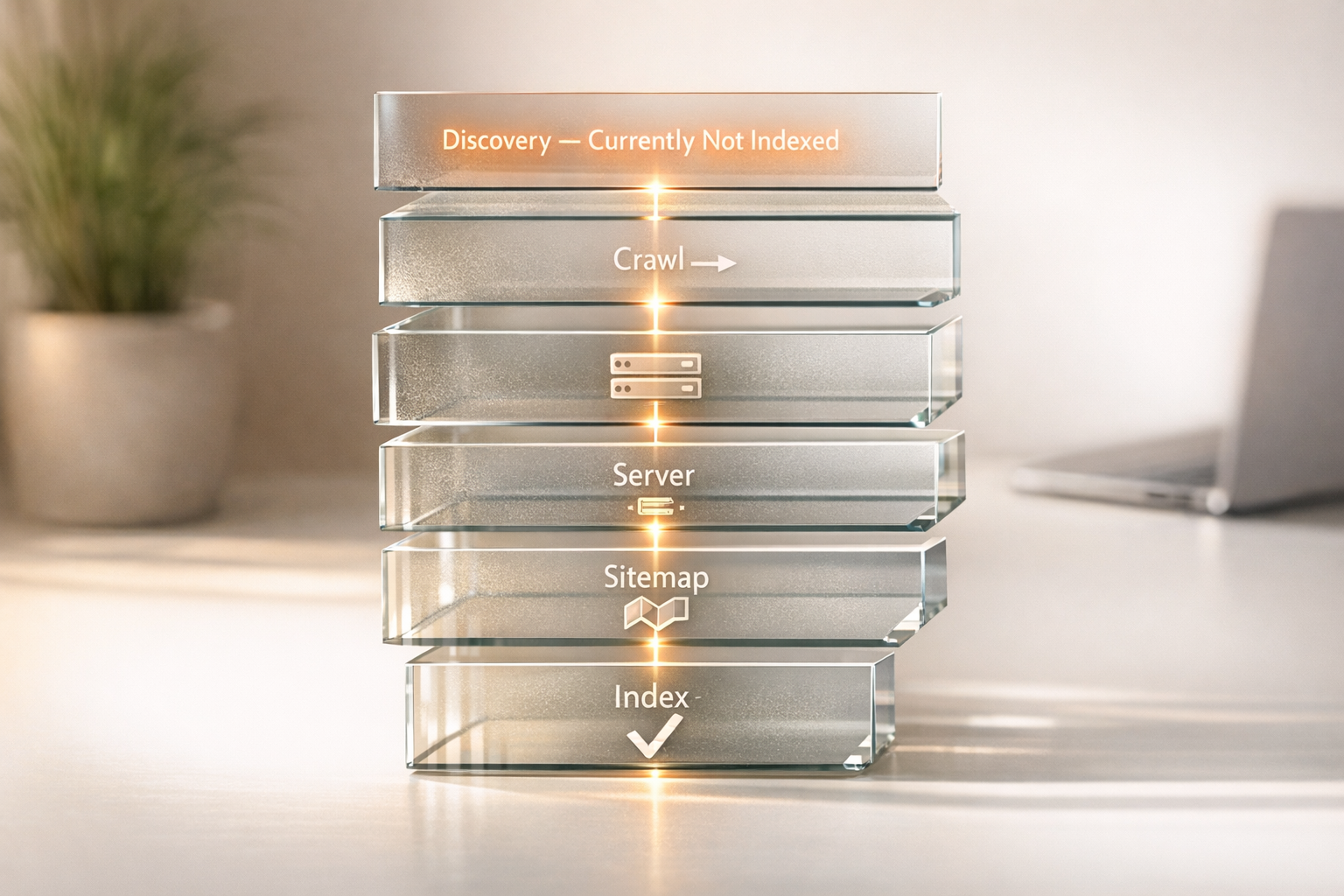
If your pages are labeled as "Discovered – Currently Not Indexed" in Google Search Console, it means Google knows about the URL but hasn't crawled it yet. This isn't an error - it's how Google manages its resources. However, it prevents your pages from appearing in search results, directly impacting your visibility and traffic.
Key Takeaways:
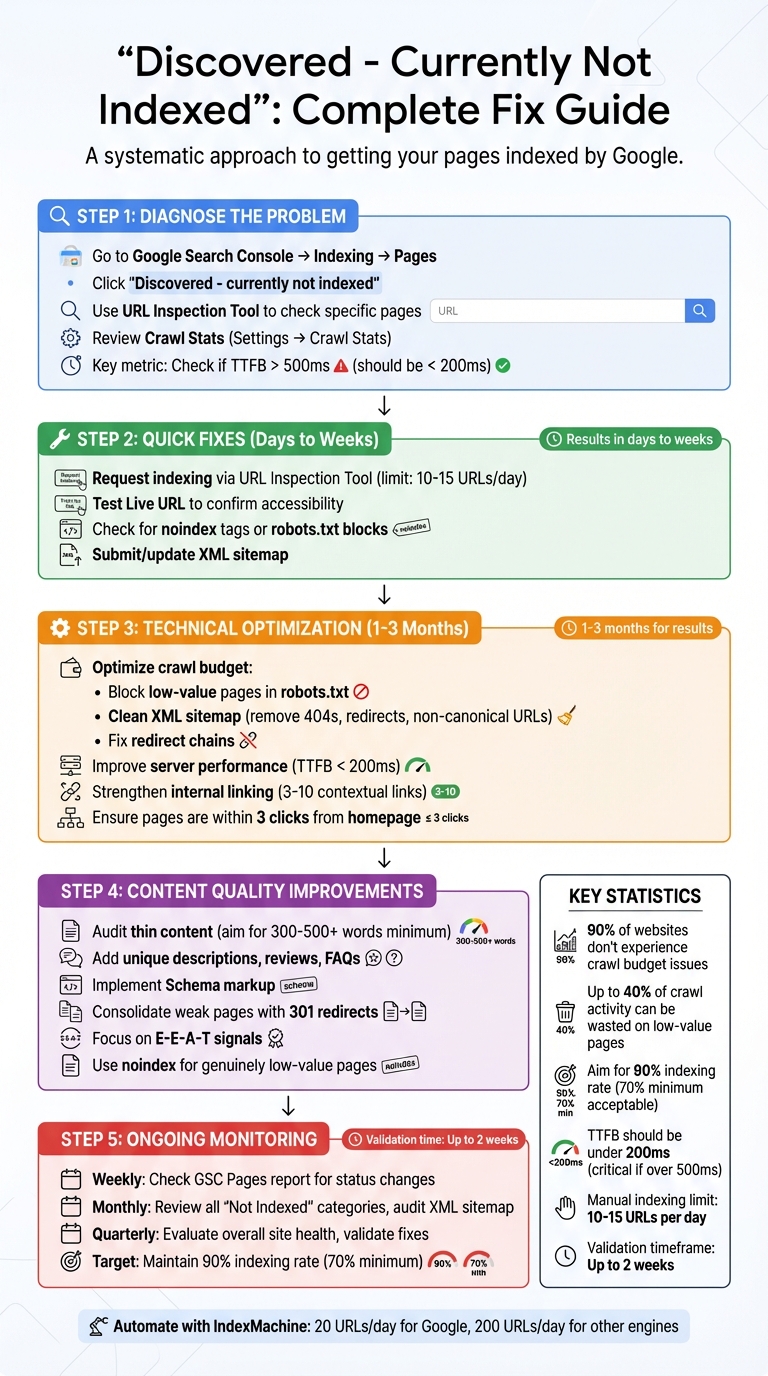
- What it means: Google found your URL but hasn't crawled it yet due to server limitations, low priority, or crawl budget issues.
- Why it matters: Pages not crawled and indexed won't show up in search results, affecting your SEO efforts.
- How to fix it:
- Use the URL Inspection Tool to request indexing for high-priority pages.
- Ensure internal linking highlights important pages.
- Improve server performance (TTFB under 200ms) and clean up your XML sitemap.
- Focus on content quality - thin or duplicate content is often deprioritized by Google.
For long-term success, monitor your Google Search Console reports regularly, optimize your site structure, and address crawl budget inefficiencies. Tools like IndexMachine can automate submissions and simplify tracking.
Finding the Root Causes of 'Discovered – Currently Not Indexed'
Common Reasons Pages Don't Get Indexed
One of the biggest challenges for large websites is crawl budget exhaustion. Google limits how many pages it crawls based on your server's capacity and your site's authority. If you're managing an e-commerce platform with thousands of products or a news site with constant updates, Google might not have the resources to reach all your newer URLs. Interestingly, 90% of websites don't experience crawl budget issues, so this primarily affects larger operations.
Another issue is weak internal linking, which signals low importance to Google. Even if a page is listed in your XML sitemap, it could be considered an "orphan page" if no internal links point to it. Google relies on internal links to gauge priority, so pages buried deep within your site - four or more clicks away from the homepage - are often overlooked.
Server performance problems can also discourage Google from crawling more pages. For example, if your Time to First Byte (TTFB) exceeds 500ms or your server frequently returns 5xx errors, Google may reduce its crawl rate to avoid overloading your site. Ideally, your TTFB should be under 200ms. Google's documentation highlights this clearly:
"If your site is responding slowly to requests, Googlebot reduces its crawl rate to protect your server".
Another factor is sitemap noise, which can undermine Google's trust in your sitemap. If your XML sitemap includes non-canonical URLs, redirects, or 404 errors, Google may view it as unreliable. For newer domains - especially those less than six months old with few backlinks - the crawl budget is often minimal until they gain credibility.
By keeping these common issues in mind, you can use tools like Google Search Console to identify the root causes on your site.
How to Use Google Search Console for Diagnosis
Google Search Console is a key resource for diagnosing and resolving indexing issues.
To start, go to Indexing > Pages in Google Search Console and look for the "Why pages aren't indexed" table. Click on "Discovered – currently not indexed" to review a list of affected URLs. The report can display up to 1,000 example URLs, even if more are impacted.
Next, use the URL Inspection Tool to analyze specific pages. Enter the URL into the search bar at the top of Search Console, and check the "Discovery" section. If the referring page is listed as your sitemap - or if nothing is listed - the page may be orphaned and require internal links.
The Crawl Stats report is another valuable tool. Navigate to Settings > Crawl Stats to check metrics like "Average response time" and "Host status". If you see spikes in response time or host errors, it indicates Google is pulling back on crawls to avoid overloading your server. Pay close attention to the "Source" column in the Page Indexing report. If it says "Website", the issue is likely fixable on your end; if it says "Google", the problem may relate to algorithmic decisions about priority or resources.
Finally, run the "Test Live URL" feature in the URL Inspection Tool. This checks if Googlebot can currently access the page without being blocked by robots.txt or encountering server errors. If the test fails with a 5xx error, the "Discovered" status is likely due to server instability. Addressing these technical issues and following an SEO indexing checklist is essential to ensure your pages are indexed effectively.
[Solved] Discovered / Crawled - Currently Not Indexed Issue in Google Search Console
Quick Fixes for "Discovered – Currently Not Indexed"
Getting your pages from "Discovered" to indexed status is essential for making them visible in search results. Here's how you can tackle this issue effectively.
How to Request Indexing with the URL Inspection Tool
If you've identified pages stuck in the "Discovered – currently not indexed" status, the URL Inspection Tool can help move them into Google's priority crawl queue. To access the tool, enter the full URL in the search bar at the top of Google Search Console or click the "Inspect" icon next to a URL in the Page Indexing report.
Start by clicking Test Live URL to confirm that Google can access the page. This test ensures any recent changes - like removing a noindex tag or updating your robots.txt file - are recognized by Googlebot. If the live test is successful, click Request Indexing to add the URL to Google's priority crawl queue.
Keep in mind that Google limits manual indexing requests to 10–15 URLs per day per property. Use this feature wisely for high-priority content or pages where critical errors have been resolved, rather than for routine indexing of new pages. Crawling can take anywhere from a few days to several weeks after submission.
For larger-scale updates, consider revising and resubmitting your XML sitemap. After submitting indexing requests, confirm that everything is working as intended through live testing.
Testing Live URLs and Checking Crawl Data
After requesting indexing, it's important to verify the results through live testing. The URL Inspection Tool offers two views: the Google Index view, which shows what's currently stored in Google's database, and the Live Test view, which checks the URL in real time. The Live Test is particularly useful for diagnosing ongoing issues, as it reveals how Googlebot interacts with the page at that moment. This includes a rendered screenshot and the actual HTML.
Pay special attention to the Page Availability section during the Live Test. Here's what to look for:
- Crawl allowed?: Confirms whether your
robots.txtfile is blocking Google. - Indexing allowed?: Identifies any
noindextags that could prevent indexing. - Page fetch: Indicates whether your server successfully delivered the page. If the status isn't "Successful", investigate server-side errors like 5xx or 404 issues.
Also, review the canonical URL comparison. If the "Google-selected canonical" differs from your "User-declared canonical", Google may see your page as a duplicate, which could block it from being indexed.
For a deeper dive, click View Tested Page during the Live Test. This allows you to review the raw HTML, HTTP response headers, and JavaScript console output. The screenshot tab shows how Google visually renders the page, helping you spot layout or loading issues. As Google's documentation points out:
"The live URL test only confirms if Google-InspectionTool can access your page for indexing. There is no definitive test that can guarantee whether your page will be included in the Google index".
Once you've resolved any technical problems, use the Validate Fix button in the Page Indexing report to prompt Google to recheck all affected URLs. For quicker validation, create a temporary sitemap with only the most important affected pages, filter the report by that sitemap, and click validate. Be patient - validation can take up to two weeks or more in some cases.
Long-Term Fixes: Technical and Content Optimization
Quick fixes might get Google crawling your site, but if you want consistent indexing, you'll need to address deeper issues with crawl budget management and content quality.
Optimizing Crawl Budget and Site Structure
Your crawl budget dictates how many pages Google visits during a crawl session. It's influenced by crawl rate limit (how fast your server responds) and crawl demand (how often Google thinks your site updates and how popular it is). If you see "Discovered – currently not indexed", it means Google knows about the URL but hasn't yet used resources to fetch it.
Crawl budget concerns are usually a problem for large sites, like e-commerce stores or news outlets with thousands of pages. But if indexing issues persist, you'll need to focus on improving crawl efficiency.
- Cut crawl waste: Use your robots.txt file to block Googlebot from crawling admin panels, search results pages, or filtered product pages that don't need indexing. On large sites, up to 40% of crawl activity can be wasted on low-value pages. Keep your XML sitemap clean by including only pages with a 200 OK status, canonical URLs, and content worth indexing - remove redirects, 404 errors, and noindex pages.
"A sitemap is a discovery aid, not an indexing guarantee." – Mangesh Shahi, Digital Marketing Professional
- Simplify your site structure: Important pages should be no more than three clicks from the homepage. Pages buried deeper may be seen as less important, which could delay their crawl priority. Fix redirect chains by linking directly to the final URL to save crawl budget.
- Boost server performance: Google may throttle its crawl rate if your server takes too long to respond. Aim for a TTFB (Time to First Byte) under 200ms. If response times exceed 500ms, consider upgrading your hosting, implementing caching, or using a CDN to improve speed.
- Strengthen internal linking: Add 3–10 contextual links from high-authority pages to signal importance to Google. This reinforces the value of key pages and helps them get crawled more often.
By addressing these technical factors, you'll create a more efficient and Google-friendly site structure.
Improving Content Quality and Relevance
Once the technical side is handled, the focus shifts to content quality. Google's indexing decisions are tightly tied to how valuable your content is.
"Index selection, while it's largely about (RAM/flash/disk) space, it's tightly tied to quality of content. If we have tons of free space available, we're more likely to index crappier content. If we don't, we might deindex stuff to make space for higher quality docs." – Gary Illyes, Google
- Audit "Crawled – not indexed" URLs: Use Google Search Console to identify patterns. Are product pages, blog posts, or category pages frequently affected? Common culprits include thin content (under 300–500 words for standard pages, 500+ for product pages, and 1,500+ for competitive topics), duplicate material, or content that misses the mark on search intent.
- Upgrade product pages: Go beyond manufacturer descriptions by adding unique copy, customer reviews, detailed FAQs, and in-depth specs. Use Schema markup (like FAQ, HowTo, Article, or Product) to help Google understand your content better and increase your chances of earning rich results.
- Consolidate weak pages: Instead of maintaining several thin pages on similar topics, merge them into a single, comprehensive hub page. Redirect outdated URLs with 301s to concentrate authority and give Google stronger content to index. Regularly update older content with fresh data and insights to signal relevance.
- Focus on E-E-A-T (Experience, Expertise, Authoritativeness, Trust): Include detailed author bios, cite reliable sources, and share firsthand knowledge or case studies. If a large portion of your site is low quality, Google might deprioritize crawling for your entire domain.
Finally, use noindex tags for genuinely low-value pages - like tag archives, internal search results, or thin category pages - to ensure Google spends its resources on your best content. When paired with technical improvements, these content strategies can set you up for long-term indexing success.
Tracking and Maintaining Indexing Health
Once you've addressed indexing issues, the next step is keeping them from coming back. Maintaining a healthy site isn't a one-and-done task - it requires regular monitoring. Many indexing problems creep in gradually over weeks or months, so catching them early can save you from losing traffic and scrambling to recover later.
Creating an Indexing Health Checklist
Start with weekly Google Search Console (GSC) audits. Check the "Pages" report for sudden increases in statuses like "Discovered – Currently Not Indexed" or "Crawled – Currently Not Indexed" to diagnose why Google won't index your site. Aim for a 90% indexing rate - anything below 70% signals bigger issues. Keep an eye on the overview chart for drops in indexed pages or spikes in server errors. These can indicate crawling issues that need attention before they escalate.
On a monthly basis, dive deeper. Review all "Not Indexed" categories, investigate any growing trends, and export your indexing data to compare it with previous months. This helps track long-term patterns. Use this time to audit your XML sitemap as well. Remove redirects, 404 errors, or non-canonical URLs that might waste your crawl budget. Keeping your XML sitemap clean and updated helps maintain Google's trust in your site.
"Submitting a sitemap is merely a hint… it doesn't guarantee that Google will download the sitemap or use the sitemap for crawling URLs." – Google Search Central
Every quarter, step back and evaluate your site's overall health. Categorize your URLs into three groups: "Core" (pages that drive revenue), "Support" (secondary but helpful pages), and "Utility" (admin pages, filters, or search results). Focus on indexing pages that provide real value to users - there's no point in fighting for thin or duplicate content. After fixing any issues, use GSC's "Validate Fix" button. Keep in mind that validation can take about two weeks to complete.
Track these metrics consistently: the ratio of indexed to non-indexed pages, internal link depth (aim for pages to be within three clicks of your homepage), server error rates from the Crawl Stats report, and sitemap accuracy. Fast page load times are also crucial since slow speeds can hurt both user retention and conversions.
To simplify these routine checks, automation tools can be a game-changer.
Using IndexMachine for Automated Indexing
Manual monitoring works, but it can be time-consuming. That's where IndexMachine comes in. This tool automates the process by submitting pages directly to Google Search Console and Bing Webmaster Tools every day. IndexMachine can handle up to 20 URLs daily for Google and 200 URLs for other search engines.
Its dashboard provides visual progress charts, showing your current indexing stats across platforms like Google, Bing, and even AI-driven tools like ChatGPT. You'll receive daily reports on newly indexed pages and alerts for 404 errors, so you can fix broken links before they impact your crawl budget. The "Detailed Page Insights" feature is especially helpful - it shows each page's coverage status and last crawl date, making it easy to identify pages stuck in "Discovered – Currently Not Indexed."
For those managing multiple sites, IndexMachine offers scalable plans. Options range from 1 domain with 1,000 pages for $12.50 (lifetime) to 10 domains with 10,000 pages each for $84.50 (lifetime). All plans include an autopilot mode that continuously monitors and submits pages. This feature is invaluable after publishing new content or making site-wide updates, ensuring Google crawls your changes faster than its natural cycles would allow.
Conclusion: Getting All Your Pages Indexed
Addressing the "Discovered – Currently Not Indexed" issue involves tackling immediate priorities while laying the groundwork for long-term site health. A good starting point is Google Search Console's Page Indexing report. This tool helps you differentiate between two primary concerns: pages that Google has discovered but hasn't crawled due to priority issues, and pages that have been crawled but remain unindexed due to content quality concerns. Additionally, double-check your robots.txt file to ensure it's not blocking essential pages and remove any unintended "noindex" tags. These steps provide a clear direction for both quick fixes and broader improvements.
For short-term results, use the URL Inspection tool to manually request indexing for your most critical pages. Keep in mind, however, that Google limits this to about 10–15 pages per day. This approach is a temporary boost, not a permanent solution. As BrightKeyword aptly states:
"Stop asking 'when will Google crawl my page?' Start asking 'why should Google crawl my page?'"
If weeks pass and your pages remain unindexed, it's a sign that Google doesn't view them as valuable enough.
Once you've tackled the immediate issues, shift your focus to sustainable site improvements. Based on earlier recommendations, ensure that key pages are no more than three clicks away from your homepage. Strengthen thin content by adding depth and incorporating strong E-E-A-T signals, as pages with fewer than 300–500 words are more likely to be skipped during crawling. Keep your XML sitemap clean, listing only valid and canonical URLs, and optimize your server to achieve a Time to First Byte (TTFB) under 200ms, which improves crawl efficiency.
While technical fixes can show results within days or weeks, larger structural changes may take anywhere from 1–3 months to make a noticeable difference. After implementing changes, use the "Validate Fix" feature in Search Console, though validation may take up to two weeks.
To stay on top of indexing issues, monitor your GSC Pages report weekly, review unindexed categories monthly, and conduct quarterly audits to catch new problems. Tools like IndexMachine can simplify this process by automating daily submissions and flagging issues like 404 errors before they waste your crawl budget. Remember, indexing isn't a one-and-done task - it's an ongoing effort. By consistently applying these strategies, you'll maintain strong indexing performance as your site grows and evolves.
FAQs
How long should I wait before worrying about this status?
It's often suggested to give it 4–6 weeks before tackling the "Discovered – Currently Not Indexed" status in Google Search Console. For new or less critical pages, this status might linger for several weeks without causing any real concerns. However, if the issue stretches beyond this timeframe, it's worth digging deeper. Check for possible factors like content quality, crawl budget, or technical SEO issues that might be holding the page back. If the pages still show no progress in gaining visibility, it's time to take corrective measures.
How can I tell if the cause is crawl budget, server speed, or content quality?
To figure out why your pages show a 'Discovered – Currently Not Indexed' status, take a closer look at these key factors:
- Crawl Budget: If Google isn't indexing many of your discovered pages, it might be time to tweak your sitemap, block pages with little value, and refine your site's structure to make crawling smoother.
- Server Speed: A slow server can hold up Google's crawling process. Look into optimizing your hosting setup and addressing any unnecessary redirects.
- Content Quality: Pages with thin or low-value content often don't make the cut. Conduct a content audit and focus on improving the depth, relevance, and organization of your pages.
Which pages should I request indexing for first?
When you see pages labeled as 'Discovered – Currently not indexed' in Google Search Console, it's a good idea to request indexing for them - especially if these pages are crucial to your site's objectives. Pay special attention to high-traffic landing pages, core product or service pages, or content that provides real value to your audience. By doing this, you can help ensure these important pages are indexed faster, boosting visibility and potentially increasing traffic to your site.