

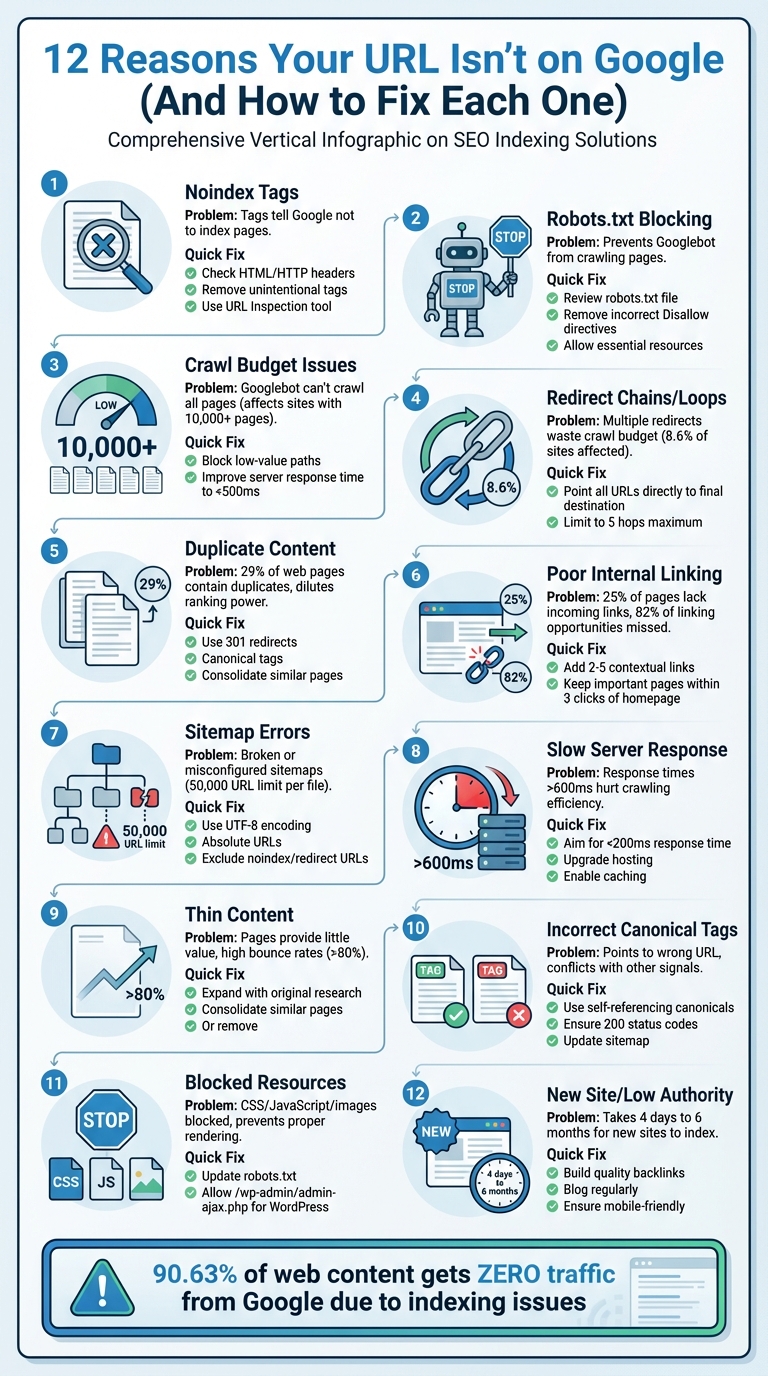
If your webpage isn't showing up on Google, it's likely due to one of these 12 common indexing issues. Without proper indexing, your page won't appear in search results, cutting off potential traffic and visibility. Here's a quick breakdown of why this happens and how to fix it:
- Noindex Tags: These tags block Google from indexing your page. Check and remove them if applied unintentionally.
- Robots.txt Blocking: A restrictive robots.txt file can prevent crawling. Adjust it to allow access to essential pages.
- Crawl Budget Issues: If Googlebot can't crawl all your pages, prioritize important ones and reduce unnecessary requests.
- Redirect Chains/Loops: Fix excessive or broken redirects to streamline crawling.
- Duplicate Content: Consolidate or properly tag duplicate pages to avoid confusion.
- Poor Internal Linking: Ensure all pages are linked and accessible within 3–4 clicks from your homepage.
- Sitemap Errors: Follow an SEO indexing checklist to keep your sitemap clean, accurate, and accessible to Google.
- Slow Server Response: Improve server speed to ensure efficient crawling.
- Thin Content: Add depth and originality to low-value pages.
- Incorrect Canonical Tags: Ensure canonical tags point to the correct page.
- Blocked Resources: Allow Google to access CSS, JavaScript, and images for proper rendering.
- New Website or Low Authority: Build backlinks and remove launch-stage restrictions for better indexing.
Fixing these issues ensures better visibility on Google, improves traffic, and enhances overall site performance. For large sites, tools like IndexMachine can automate URL submissions and track indexing progress, saving time and effort.
Why Isn't Google Indexing Your Site? Here's How to Fix It
1. Noindex Tags Blocking Indexing
Noindex tags tell Google not to include specific pages in search results. When Googlebot crawls a page and encounters this directive, it removes the page from search rankings - even if other sites link to it.
These noindex instructions are typically added as meta tags in HTML (<meta name="robots" content="noindex">) or through HTTP headers like X-Robots-Tag: noindex. While meta tags are common for webpages, HTTP headers are often used for non-HTML files, such as PDFs or images. Unfortunately, these directives sometimes end up on live sites by mistake.
To identify pages affected by noindex tags, check the "Pages" report in Google Search Console. Look for URLs labeled as "Excluded by 'noindex' tag." You can also review the page source for "noindex" or inspect HTTP headers using browser developer tools or a site crawler, as server-level blocks won't show up in the HTML.
If you're using WordPress, ensure the "Discourage search engines from indexing this site" option in Settings > Reading is turned off. Also, check that SEO plugins like Yoast or Rank Math aren't unintentionally applying noindex tags. For server-side blocks, review your .htaccess file for entries such as Header set X-Robots-Tag "noindex".
Once you've removed the noindex directive, use the URL Inspection tool in Google Search Console to request a recrawl. Keep in mind that it may take a few days to weeks for the page to reappear in search results. Up next, we'll explore other factors that can prevent your pages from being indexed.
2. Robots.txt Disallowing Crawling
Your robots.txt file plays a crucial role in guiding search engine crawlers on which parts of your site they can access. Unlike noindex tags, which remove pages from search results, robots.txt prevents Googlebot from even reaching those pages. As Anna Crowe, SEO Director and Consultant, puts it:
"Robots.txt files are not used to control indexed. Robots.txt files are used to control crawling".
This file is located in your website's root directory (e.g., yourdomain.com/robots.txt) and uses directives like Disallow: /private/ to specify which paths crawlers should avoid. However, even a minor mistake can have massive consequences. For example, in October 2025, a mid-sized ecommerce business experienced a staggering 90% drop in organic traffic within 24 hours. The culprit? A staging robots.txt file containing Disallow: / was mistakenly pushed to their live server. Errors like this can reduce search visibility by up to 30%.
To avoid such disasters, regularly check for blocked URLs using Google Search Console's URL Inspection tool or by reviewing your robots.txt file directly at yourdomain.com/robots.txt. Pay attention to common pitfalls. For instance, Disallow: /directory (without a trailing slash) blocks all paths starting with that string, including /directory-news, whereas Disallow: /directory/ targets only the specific folder. Also, keep in mind that directives are case-sensitive - Disallow: /Admin/ won't block /admin/.
If URLs are being blocked unintentionally, you can fix this by editing your robots.txt file and removing or adjusting the problematic Disallow directive. To allow specific pages within a restricted directory, use the Allow directive (e.g., Allow: /private/public-page.html after Disallow: /private/). Additionally, avoid blocking essential resources like CSS, JavaScript, or images that Googlebot needs to properly render your site.
Keep in mind that Google caches robots.txt files for up to 24 hours, so changes might not take effect immediately. To speed things up, use Google Search Console's "Request a recrawl" feature to prompt Google to recheck your updated file.
One critical reminder: never use robots.txt to hide pages you want to exclude from search results. Blocking a page prevents Google from crawling it, which means it can't detect a noindex tag. If other websites link to the blocked URL, it could still appear in search results - just without a description. As Anna Crowe advises:
"If you're using a noindex tag on a URL, do not disallow the same URL in the robots.txt. You need to let search engines crawl the noindex tag to detect it".
Up next, we'll dive into another indexing challenge: crawl budget issues.
3. Crawl Budget Exceeded
Crawl budget refers to the number of crawl requests Googlebot allocates to your website each day. It's determined by a formula: Crawl Budget = min(Crawl Capacity Limit, Crawl Demand). Two main factors influence this: crawl capacity limit, which depends on your server's response speed and error rate, and crawl demand, which reflects how much Google values your content based on factors like popularity, backlinks, and update frequency. This balance makes managing your crawl budget crucial for ensuring all your important pages are indexed.
When your site has more pages than your crawl budget can handle, Googlebot may stop crawling before reaching all your content. This means high-priority pages can remain stuck in the "Discovered – currently not indexed" category for extended periods - or even indefinitely. This issue is especially common for sites with over 1 million pages, those with 10,000+ frequently updated pages, or e-commerce platforms with complex filtering systems.
Crawl waste is often to blame. For example, in May 2024, an e-commerce client specializing in outdoor gear faced a crawl budget issue. Out of 50,000 product pages, only 8,000 were indexed, despite 200,000 daily crawl requests. The problem? A staggering 142,000 requests were wasted on filter parameters like color, size, and sort. By blocking these parameters in the robots.txt file and improving server response time from 3.2 seconds to 0.7 seconds, the site's crawl rate surged by 280%. As a result, 187 of 200 new products were indexed within 48 hours.
To address crawl budget issues:
- Block low-value paths in your
robots.txtfile, such as internal search results, admin pages, and filter parameters (e.g.,Disallow: /*?sort=). - Use canonical tags to consolidate duplicate URL variations.
- Ensure removed pages return proper
404or410status codes, rather than "soft 404s" that Google continues to crawl.
Additionally, improving your server's response time can significantly enhance crawl efficiency. For instance, reducing response time by just 100ms can boost efficiency by around 15%. Aim for response times below 500ms.
To diagnose crawl budget issues, divide your total indexable pages by the average daily crawl requests in Google Search Console. A ratio above 10 indicates a bottleneck, while a ratio below 3 suggests you're in good shape. Also, ensure that key pages are no more than 3–4 clicks away from your homepage. Pages buried deeper are less likely to be crawled and indexed. Managing your crawl budget effectively lays the groundwork for optimizing your site's internal structure and indexing potential.
4. Redirect Chains or Loops
Redirect chains and loops can seriously hurt your website's crawl efficiency and indexing. A redirect chain happens when a URL leads to another URL, which then redirects again, creating multiple "hops" (e.g., A → B → C). On the other hand, a redirect loop is a never-ending cycle where URLs keep pointing back to each other (e.g., A → B → A), making the page completely inaccessible. Both issues not only waste your crawl budget but also risk leaving your content unindexed by Google.
Googlebot will stop crawling after 10 redirects, but experts recommend keeping it to no more than 5 hops to minimize delays. Each hop can add 100–300 milliseconds of latency, which can pile up quickly. Shockingly, about 8.6% of websites have at least one redirect chain.
"Googlebot typically won't index a webpage if it has to go through more than 10 URL hops, meaning critical content may never be seen in search results." – Veruska Anconitano, Editor, Search Engine Land
To fix redirect chains, streamline them by adjusting your redirect rules so that all outdated URLs lead directly to the final destination. For instance, instead of A → B → C, ensure both A and B point straight to C. Tools like Screaming Frog or Sitebulb can generate reports to pinpoint where these chains exist, which often crop up during site migrations or CMS updates.
Redirect loops require consistent URL rules to prevent conflicts. Standardize protocols (e.g., HTTPS vs. HTTP), domains (e.g., www vs. non-www), and trailing slashes to avoid unintentional loops.
Additionally, update your internal links, XML sitemaps, and canonical tags to point directly to the final URL. Use tools like the URL Inspection tool to confirm that paths are fixed. Opt for 301 or 308 redirects for permanent changes, while 302 or 307 should only be used for temporary adjustments. Cleaning up redirects ensures Googlebot can crawl your site efficiently and index your content properly.
5. Duplicate Content Issues
Duplicate content can be a sneaky culprit behind poor URL performance on Google. It refers to identical or very similar text appearing across different URLs, either on your site or elsewhere online. While Google doesn't penalize sites for duplicate content, it does have to pick one version to rank. If its choice doesn't align with yours, your preferred page might suffer in visibility.
Here's a surprising stat: about 29% of web pages contain duplicate content, and some estimates suggest that up to 60% of the internet's content is duplicated. This can lead to wasted crawl budgets and diluted link equity, as Google spreads its attention across multiple URLs instead of focusing on one. Fixing these issues has been shown to boost organic traffic by as much as 20%.
Common Causes of Duplicate Content
- URL parameters (e.g.,
?sessionid=12345) - Printer-friendly pages
- HTTP vs. HTTPS versions
- Manufacturer-provided product descriptions reused across sites
To spot duplicates, you can run a site:yourdomain.com search on Google and check canonical versions in Google Search Console.
Fixing Duplicate Content
The solution depends on the specific scenario:
- 301 Redirects: Permanently redirect duplicate URLs to a single, preferred version. This consolidates ranking signals and ensures Google focuses on one page.
- Canonical Tags: Use the
rel="canonical"tag to point Google to the preferred URL when multiple versions need to stay live, such as for product variations or tracking parameters. - Meta Noindex Tag: For pages like category tags or internal search results that aren't meant to rank, apply
<meta name="robots" content="noindex,follow">. - Content Merging: Combine thin or similar pages into a single, more comprehensive resource to reduce internal competition.
Best Practices for Avoiding Duplicate Content
- Ensure your internal links, XML sitemaps, and canonical tags consistently point to the preferred URL.
- Standardize your domain format (choose www or non-www and enforce HTTPS).
- Monitor Google Search Console for warnings like "Duplicate, Google chose different canonical than user" to identify misaligned signals.
6. Poor Internal Linking
Internal links play a vital role in helping Google discover and index your content. Without these links, some pages - known as orphan pages - can remain unnoticed by Googlebot, even if they are included in your sitemap. In fact, research shows that 25% of pages lack any incoming links, and 82% of linking opportunities are missed.
Google also uses internal links to gauge the importance of your pages. Pages with more internal links signal higher priority for crawling and ranking. As John Mueller, Google's Search Advocate, put it:
"Internal linking is one of the biggest things that you can do on a website... it is super critical for SEO."
If your website lacks a strong internal linking structure, you may notice pages in Google Search Console flagged with a "Discovered – currently not indexed" status. This means Google knows the page exists but hasn't prioritized crawling it.
The solution? Start by identifying orphan pages using a site audit tool. Once found, add 2–5 contextual links from relevant pages to these orphan pages. Make sure your most important pages are no more than three clicks away from the homepage, and use descriptive anchor text that accurately reflects the content of the linked page. Additionally, link to these pages from 2–3 older, high-authority articles to boost their visibility.
A great strategy is to use a hub-and-spoke model: create a central pillar page that links to related subpages. These subpages should link back to the pillar and to each other, forming a network that distributes authority and reinforces topical connections. For maximum impact, place your most important internal links near the top of your content - ideally within the first 150 words or the top 30% of the page. This ensures both readers and search engine crawlers can find them quickly.
Next, we'll dive into optimizing your sitemap configuration to further improve indexing.
7. Suboptimal Sitemap Configuration
A well-organized sitemap is essential for guiding Google through your site, but it's not a foolproof solution. As Google Search Central puts it, "Submitting a sitemap is merely a hint... it doesn't guarantee that Google will download the sitemap or use the sitemap for crawling URLs". Unfortunately, many site owners assume that adding a URL to their sitemap guarantees indexing, which isn't the case.
To ensure Google can access your sitemap, check the Sitemaps report in Google Search Console. Look for errors like "Couldn't fetch" or "Has errors." A "Couldn't fetch" error might mean your robots.txt is blocking the sitemap, the sitemap URL is returning a 404 error, or a Web Application Firewall is interfering with Googlebot using JavaScript or CAPTCHAs. You can also use the URL Inspection tool's Live Test feature to confirm Googlebot can access your sitemap without any issues.
Syntax problems can also prevent proper sitemap parsing. Make sure your sitemap is UTF-8 encoded, uses absolute URLs (e.g., "https://example.com/page" instead of "/page"), and follows the W3C Datetime format. Keep in mind that a single sitemap can only include up to 50,000 URLs or 50MB of uncompressed data. If your site exceeds these limits, split your sitemaps into smaller files and use a sitemap index file to manage them.
It's also important to exclude problematic URLs. Avoid including URLs with noindex tags, redirects, broken links, or non-canonical versions. As cr0x.net explains, "If your sitemap URL disagrees with your canonical, Google often trusts the canonical and ignores the sitemap entry". Regularly clean up your sitemap to ensure it only contains canonical URLs that return a 200 status code. For best practices, place your sitemap in the root directory (e.g., example.com/sitemap.xml) and include a Sitemap directive in your robots.txt file.
Once you've made changes to your sitemap, give Google about a week to process them. During this time, use the Page Indexing report in Search Console and filter by sitemap to check which URLs have been excluded and why. This can help you pinpoint whether the issue lies in your sitemap configuration or other indexing barriers. Addressing these issues can clear the path for better indexing and improved site performance.
8. Slow Server Response Times
When your server responds slowly, it limits Googlebot's ability to crawl your site effectively. Instead of crawling dozens - or even hundreds - of pages, Googlebot might only manage a handful. The Google Search Relations team puts it this way:
"Crawl budget is now primarily limited by 'host load' - how fast and efficiently your server can serve pages".
For optimal performance, aim for server response times under 200 ms. A response time between 200–600 ms is considered average, but anything over 600 ms can hurt both user experience and SEO. If your Time to First Byte (TTFB) exceeds 500 ms, it's a warning sign that your backend might be struggling. This can lead to URLs being stuck in a "Discovered - currently not indexed" state because Googlebot doesn't have enough time to crawl them fully.
To diagnose issues, check the Crawl Stats report in Google Search Console for response time spikes. If you notice persistent response times above 500 ms or frequent 5xx errors - especially during Google's peak crawling hours (typically 2–4 AM) - your server could be the culprit. Tools like WebPageTest or GTmetrix can help you measure TTFB across different regions and pinpoint delays.
The first step to fixing this often involves upgrading your hosting. Shared hosting plans might throttle bot requests, limiting crawl efficiency. Switching to VPS or cloud hosting provides more dedicated resources and better stability during traffic surges. Additionally, using server-side caching tools like Redis or Memcached and a CDN to deliver content closer to Googlebot can significantly reduce latency.
Backend optimizations are equally important. Monitor your database for slow queries (anything taking over one second) and clean up unnecessary data like outdated post revisions and spam comments. Enabling Gzip or Brotli compression at the server level can also make a big difference - Gzip, for example, can shrink text-based files by up to 70%. These tweaks not only help Googlebot crawl your site more effectively but also improve Core Web Vitals metrics like Largest Contentful Paint, which directly influences your rankings.
9. Thin or Low-Quality Content
Google describes thin content as pages that provide "little or no added value", which can make proper indexing a challenge. The length of a page doesn't guarantee its quality - a 1,000-word article can still be considered thin if it lacks depth or originality. With updates to Google's Helpful Content System from 2024 to 2026, the focus is on penalizing pages created primarily for search engines rather than for real users.
Thin content often includes examples like AI-generated text without human refinement, doorway pages (e.g., dozens of "plumber in [City Name]" pages differing only by location), scraped content, and affiliate pages that simply list products without providing original reviews or insights. These types of low-value pages not only waste your crawl budget but can also lead to severe drops in traffic.
If a page shows a "Crawled – currently not indexed" status, it's likely that Google considers it too low in value. To identify such pages, check Google Analytics for URLs with bounce rates over 80% or time-on-page under 30 seconds. Audit these pages to ensure they thoroughly address user queries and offer something unique.
Here are three ways to improve thin content:
- Expand: Add original research, expert opinions, case studies, or FAQs to better align with search intent.
- Consolidate: Combine multiple thin pages on similar topics into a single, more comprehensive resource and use 301 redirects.
- Prune: Remove pages that haven't received traffic in the past year and redirect them to more relevant content.
Avoid simply updating the publication date - ensure you include meaningful new content and data. Google's E-E-A-T framework (Experience, Expertise, Authoritativeness, Trustworthiness) is crucial for assessing content quality, especially for "Your Money or Your Life" topics like health and finance. To enhance your content's credibility, consider adding author bios, citing reliable sources, and placing key information "above the fold" to immediately communicate the page's purpose.
As AI-generated content comes under increased scrutiny, demonstrating human effort is critical. Incorporating original structures, custom visuals, and manual insights can make your content stand out.
Next, let's explore how proper use of canonical tags can further influence page indexing.
10. Incorrect Canonical Tags
A canonical tag (rel="canonical") tells search engines which version of a page you want to be treated as the primary one. But if this tag points to the wrong URL, it can cause Google to prioritize a different page over the one you're trying to rank. For instance, imagine you're aiming to rank a specific product page, but the canonical tag mistakenly points to a category page or a different product variant - this can derail your SEO efforts.
A frequent misstep happens when canonical tags conflict with other indexing signals. For example, if a page has a canonical tag but also includes a "noindex" directive or is blocked by robots.txt, it sends mixed messages. John Mueller, Senior Search Analyst at Google, highlights this issue:
"Canonical tags shouldn't be used in combination with the 'noindex' tag and/or robots.txt disallow. Since each of these attributes serves a different function, using all of them simultaneously gives Google contradictory signals."
In such cases, Google may choose to ignore your canonical tag entirely.
Another common problem is canonical chains. This occurs when Page A points to Page B, and Page B points to Page C. These "hops" can confuse Google, leading it to either pick the wrong URL or disregard your instructions altogether. Similarly, if your canonical tag points to a URL that results in a 404 error, redirects (via 301 or 302), or is blocked from crawling, the preferred page might not get indexed.
To catch these issues, use the URL Inspection tool in Google Search Console. Compare the "User-declared" canonical with the "Google-selected" canonical. If there's a mismatch, it's a sign that Google is overriding your choice - likely due to inconsistencies like differing content or poor internal linking.
Here's how to fix these problems:
- Use self-referencing canonical tags: Ensure every unique page has a canonical tag pointing back to itself, using the full absolute URL (e.g., https://example.com/page), not a relative path.
- Check canonical targets: Make sure the URLs you designate as canonical return a 200 status code and are crawlable.
- Update your XML sitemap: Include only canonical URLs in your sitemap to avoid confusion.
- Standardize internal links: Ensure all internal links consistently point to the canonical version of each page. This reinforces your preference to Google.
These steps help align your indexing signals, reducing the chances of Google misinterpreting your intent.
Next, let's look at how blocked resources can interfere with rendering and indexing.
11. Blocked Resources (CSS, JavaScript, Images)
Google processes your page much like a browser does, which means it needs access to CSS, JavaScript, and images to properly render and understand your content. If these resources are blocked, Google might misinterpret your page or skip indexing parts of it altogether.
One common culprit is an overly restrictive robots.txt file, which can unintentionally block essential assets. For instance, WordPress sites often include rules like Disallow: /wp-admin/ or Disallow: /wp-includes/. While these are intended to secure the backend, they can also prevent Googlebot from accessing critical files. A real-world example: In February 2023, Kinsta's technical team discovered over 400 blocked resource errors in Google Search Console. The issue stemmed from the rule Disallow: /wp-admin/, which inadvertently blocked the file https://kinsta.com/wp-admin/admin-ajax.php. By adding an explicit Allow: /wp-admin/admin-ajax.php directive to their robots.txt file, they resolved the errors in just a few days.
To identify blocked resources, use Google Search Console's URL Inspection tool. Enter your URL, click "Test Live URL", and then check the "View Tested Page" option. If the screenshot shows broken layouts or missing styles, there's likely a problem. The "Page Resources" section will list any assets Google couldn't load, often flagging them as "Blocked by robots.txt."
Fixing this involves editing your robots.txt file. Remove any Disallow rules that block directories containing CSS, JavaScript, or images. For WordPress users, ensure your file includes the rule Allow: /wp-admin/admin-ajax.php, as many themes and plugins depend on this file for front-end functionality. After adjusting the file, use the "Robots.txt Tester" in Search Console to verify that all previously blocked resources are now accessible.
Google Search Console also warns that if Googlebot can't access essential resources, pages might be indexed incorrectly. This is especially important for sites built with JavaScript frameworks like React or Vue, as blocking JavaScript can make your site invisible to search engines.
Understanding how resource access affects indexing is key, especially when considering challenges like new websites or low site authority.
12. New Website or Low Site Authority
If your website is brand new, Google won't find it unless there are external links pointing to it. Google primarily discovers new content by following links from pages it already knows. Without those links, your site remains isolated, making it difficult for crawlers to locate and index it. For new domains, appearing in search results can take anywhere from 4 days to 6 months.
A website's authority also plays a big role in how quickly it gets indexed. Google evaluates authority largely through backlinks, where each link acts as a "vote of confidence" from another site. New websites typically lack these backlinks, signaling to Google that they are a lower priority. High-authority sites, like major news outlets or government domains, can get indexed in minutes to hours, but smaller, newer sites with fewer than 500 pages often wait 3 to 4 weeks for full indexing.
In Google Search Console, you might notice the status "Discovered – currently not indexed" for a new site. This means Google is aware of your URL but hasn't prioritized crawling it because the site's authority is too low. Submitting a sitemap can help, but it won't force Google to index your pages if your site lacks credibility.
To speed things up, focus on earning high-quality backlinks through strategies like guest posting or digital PR in your niche. Blogging regularly can also help; companies that blog see 55% more website visitors because fresh content naturally attracts links. Additionally, double-check that any staging settings (like Disallow: / or noindex tags) are removed before launching your site. Lastly, ensure your site is mobile-friendly, as Google primarily uses the mobile version for crawling and ranking.
With organic search driving about 53% of total website traffic, delays in indexing can seriously impact your ability to reach your audience. While waiting for Google to naturally discover and prioritize your site, work on building external authority and fixing any technical issues that might be slowing the process. Up next, learn how automated indexing solutions can help accelerate this timeline.
Using IndexMachine for Automated Indexing Solutions
Once you've tackled the technical challenges discussed earlier, the next step is managing URL submissions and keeping an eye on indexing progress. Automating this process can save you a ton of time and help avoid mistakes caused by manual submissions. That's where IndexMachine steps in - it simplifies and automates URL submissions across platforms like Google, Bing, and even AI systems like ChatGPT. No more manual work.
Managing crawl budgets and tracking URLs manually can be a headache, especially for large sites. IndexMachine takes care of this by automating submissions to multiple search engines at the same time. It even lets you customize settings for each domain. Unlike Google Search Console, which limits you to 20 URL submissions per day, IndexMachine handles up to 200 daily submissions. Plus, it tracks more than 1,000 URLs, going beyond Search Console's cap, and categorizes pages as indexed, excluded, or pending. It also logs crawl history, giving you detailed visibility into your site's performance.
Another bonus? IndexMachine flags problems like 404 errors or "Crawled – currently not indexed" pages automatically, so you can fix them right away. If you're managing a large site with multiple domains, this kind of automated tracking isn't just helpful - it's a game-changer.
To make things even better, IndexMachine offers flexible pricing plans to suit different needs. Here's a quick breakdown:
- SaaS Builder: $12.50 (lifetime) for 1 domain with up to 1,000 pages.
- 5 Projects: $50 (lifetime) for 5 domains, each with 1,000 pages.
- Solopreneur: $84.50 (lifetime) for 10 domains, each with 10,000 pages.
All plans include full automation, daily reports, and alerts for broken pages. For small businesses juggling multiple websites, the time saved on manual submissions alone makes this a worthwhile investment.
Conclusion
Getting your URLs indexed is a critical step for achieving SEO success. As John Mueller from Google explains:
"Just because something is not indexed doesn't mean it's bad... But when SEO success depends on indexing, it does need to be fixed".
This article covered 12 common issues that can block proper indexing, from technical hurdles to content quality problems. Each of these issues demands prompt attention if you want your content to be seen by your audience.
The numbers speak for themselves: Google drives over 60% of website traffic, yet a staggering 90.63% of web content gets zero traffic from Google. Why? Because much of it never gets indexed. While you're working to fix indexing problems, competitors with well-indexed content are capturing traffic, leads, and revenue. Every unindexed day is a missed opportunity.
Start by addressing technical issues like noindex tags and restrictive robots.txt rules for a quicker recovery. Then, tackle issues like redirect chains, duplicate content, weak internal linking, and sitemap errors to improve your chances of getting indexed. Keep in mind that while a sitemap helps Google discover your pages, it doesn't guarantee they'll be indexed. You'll also need to focus on quality signals, server performance, and proper use of canonical tags.
Once technical problems are resolved, automating URL submissions can help maintain consistent indexing in the long run. Manual submissions through Google Search Console are limited to 20 URLs per day, making it impractical for larger sites or multiple domains. Tools like IndexMachine simplify the process, allowing for high-volume submissions and ongoing monitoring of indexing health.
FAQs
How can I tell if Google can crawl my URL but won't index it?
To see if your page is stuck in the "Crawled – Currently not indexed" status, head over to Google Search Console. This status means Google has crawled your page but hasn't added it to its index yet.
Another quick way to check? Use the site:yourdomain.com/yourpage search in Google. If your page doesn't show up in the results, it's a clear sign it's not indexed.
For a deeper dive, the URL Inspection Tool in Search Console is your best friend. It can pinpoint potential problems like crawl errors or noindex tags that might be blocking your page from being indexed.
What should I fix first when a page shows "Discovered – currently not indexed"?
To address a "Discovered – currently not indexed" issue, start by tackling these areas:
- Content Quality: Make sure the page provides useful, well-optimized content that aligns with Google's expectations.
- Internal Linking: Add internal links pointing to the page to improve its visibility and crawl priority.
- Crawl Budget: Review your website's crawl budget and, if necessary, optimize your server's performance to ensure efficient crawling.
Prioritize content quality and internal linking, as these have the most direct impact on whether a page gets indexed.
How long should I wait after fixing issues before expecting the URL on Google?
After addressing issues or submitting a sitemap or indexing request, give Google at least one week to discover, crawl, and process your content. If your URL still doesn't show up after this period, it might be time to dig deeper into unresolved technical or content-related problems.